
How to Create a Team
TeamsSteps
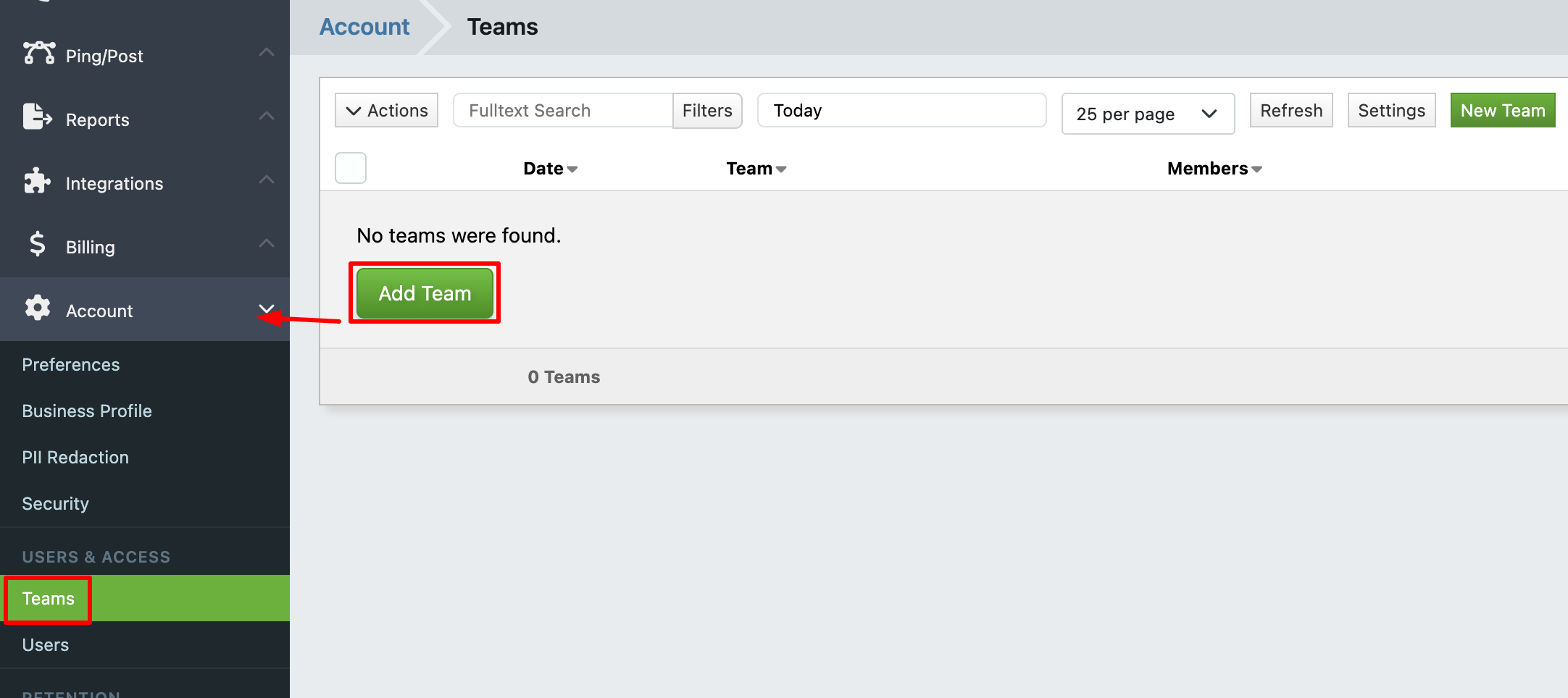
- In the sidebar, open Account > Teams and click New Team. (When no teams exist yet, the empty list shows an Add Team button instead.)
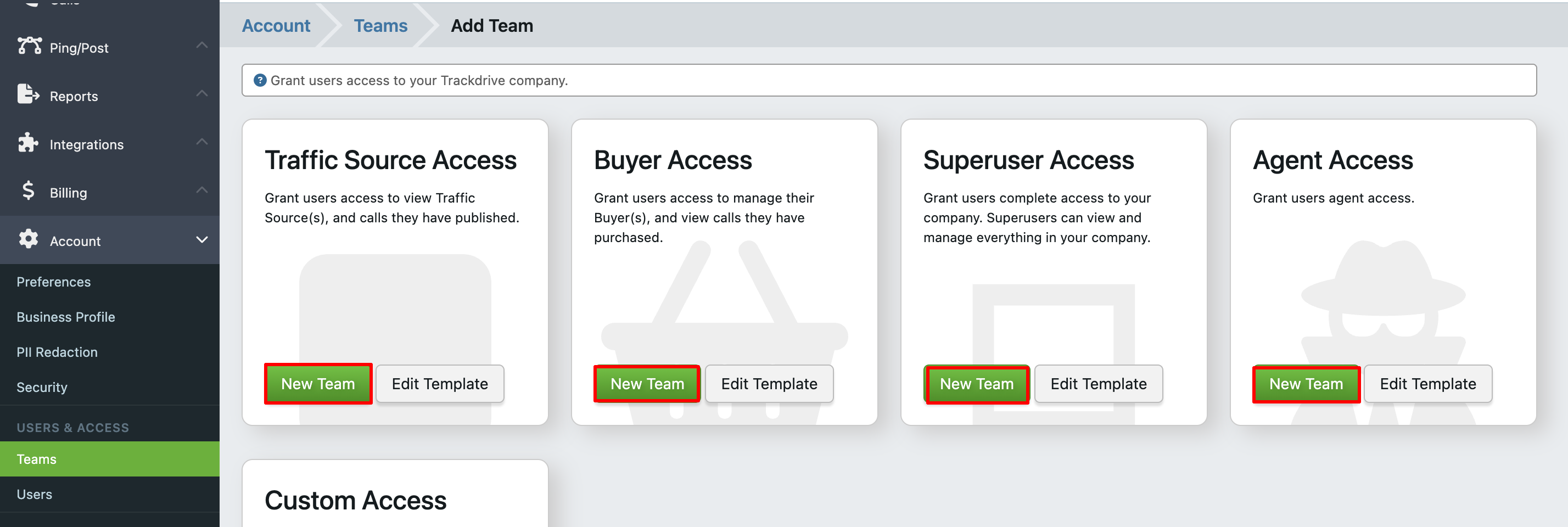
- Choose a starting point: Pick a template such as "Buyer Team Template" or "Traffic Source Team Template" and click New Team beside it, or start from scratch for custom access.
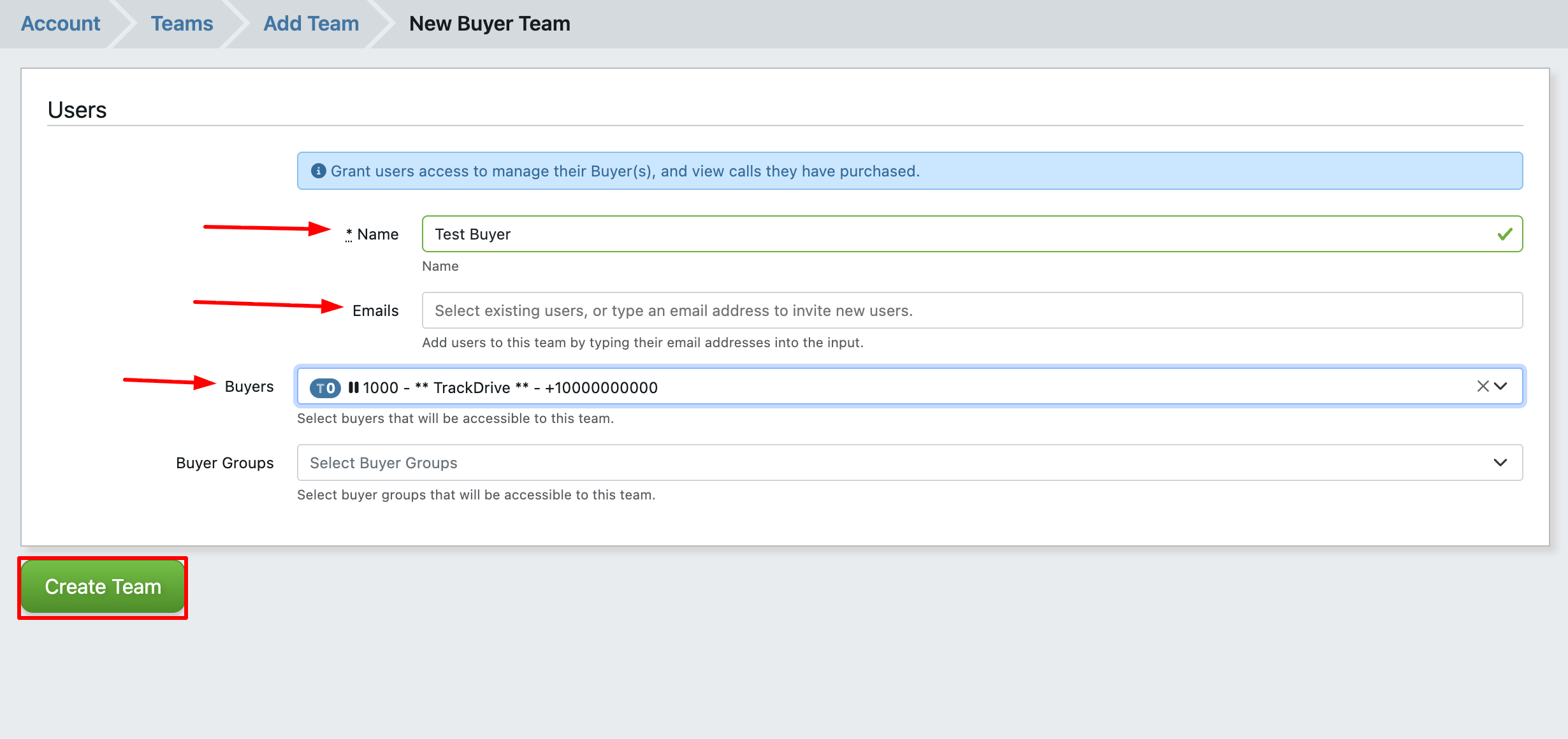
- Enter a Name for the team (e.g., "Sales Agents", "Reporting Only", " Buyer Team"). Configure record-level access. For each record type (Buyers, Offers, Calls, etc.):
- Add Email of the User. (For Buyer or Traffic Source Access select template accordingly and Select Buyer or Traffic Source from the dropdown)
- Verify user permission by checking Team template
- Per-attribute access levels: none, read, or update.
- Click Create Team.
Optionally enable Superuser Team for Admin or Managers of the Account and select which application areas the superuser can access.
Best Practices
- Create teams that mirror your organizational roles: one for administrators, one for agents, one for reporting-only users.
- Use the principle of least privilege. Grant only the access each role needs.
- Review team permissions periodically as new features are added to the platform.

