
How to Add a Buyer to an Offer
BuyersTwo Steps: Create the Buyer, Attach to the Offer
Adding a buyer to an offer is a two-step process. First you create the Buyer record, then you attach it to one or more offers through the offer's Call Flow. A buyer is a reusable entity that can serve multiple offers; the Call Router attachment is what makes the buyer eligible to receive calls from that specific offer.
Step 1: Create the Buyer
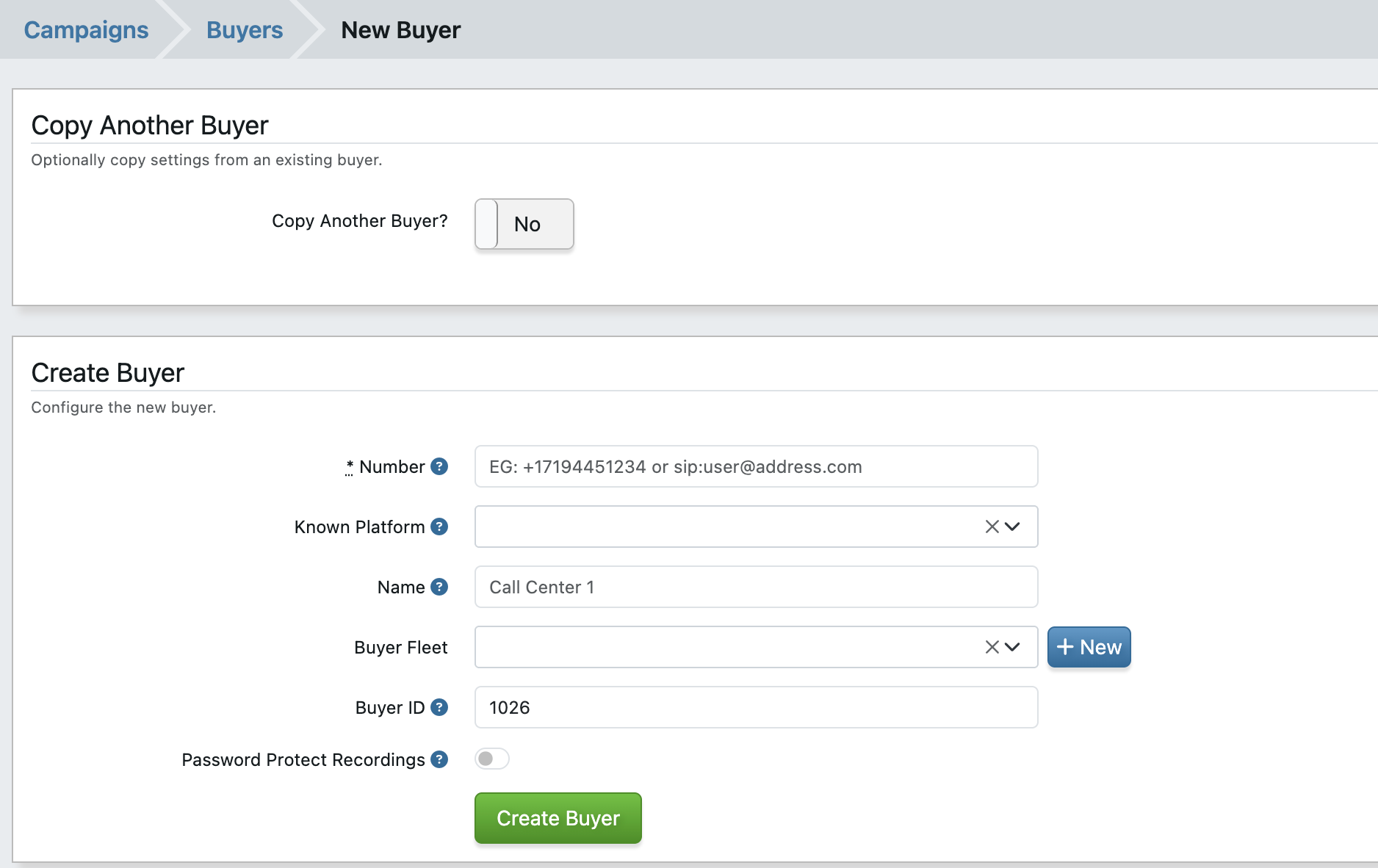
In the sidebar, open Campaigns -> Buyers, then click Add Buyer. The new-buyer screen first asks whether to Copy Another Buyer or Create Buyer.
The Attributes section collects if Creating New Buyer:
-
Number (required). Where calls should route. Begin direct phone numbers with
+and the country code (placeholder:EG: +18001231234 or sip:user@address.com). For SIP destinations, prefix withsip:. When a SIP URI is entered, additional optional SIP Username and SIP Password fields appear. -
Buyer ID. Your external identifier for this buyer (placeholder:
EG: IC1). Optional. -
Buyer Fleet. Optional grouping of buyers that represent the same real-world company. Used by system tokens like
previous_buyer_fleet_idsfor cross-buyer deduplication. -
Name. Display label that appears throughout TrackDrive (placeholder:
EG: Insurance Call
Center 1
). -
Time Zone. Defaults to
(UTC-04:00) Eastern Time (US & Canada). Business hours are evaluated in this zone. - Pause - Stop forwarding calls? Paused buyers are skipped by routing. Use the Start/Pause button
Click Create Buyer to create the buyer. It now exists but receives no traffic until attached to an offer.
Caps and Conversion Settings do not appear on the new-buyer form; configure them after the buyer is created
Step 2: Attach the Buyer via the Offer's Call Flow
Buyers are not attached to an offer through a top-level "Buyers" section on the offer. They are attached
through the offer's Call Flow: each Call Router has an action that can be set to dial a buyer, a buyer group, or a voice agent. Open the offer edit page, locate the Call Flow section, and either edit an existing Call Router or add a new one. In the action settings:
- Choose An Action. Pick an action that dials buyers, such as "Forward To Buyers or Agents".
- Connect Callers To These Buyers (or Buyer Groups). Select the buyer or group the action should dial.
Save the call flow. The buyer is now reachable through Offer's Call Flow.
Verifying the Attachment
Place a test call to a tracking number attached to the offer. On the resulting Call record's routing timeline,
the new buyer should appear as a considered candidate.
Buyer Groups
If you have many buyers that share characteristics (same payout, same caps, same business hours), consider creating a Buyer Group and attaching the group to the offer instead of attaching buyers individually. Groups simplify management when the same cohort of buyers serves many offers.

